When an HR app joins Microsoft Teams, it asks for Microsoft Graph permissions that decide which employee data it can read. Approve the narrow, delegated ones the app needs to work, and question tenant-wide application permissions, mailbox access and chat access. This guide gives you the permission table, a review checklist and eight questions for the vendor.
Delegated vs Application Permissions: What Each Lets an App Do
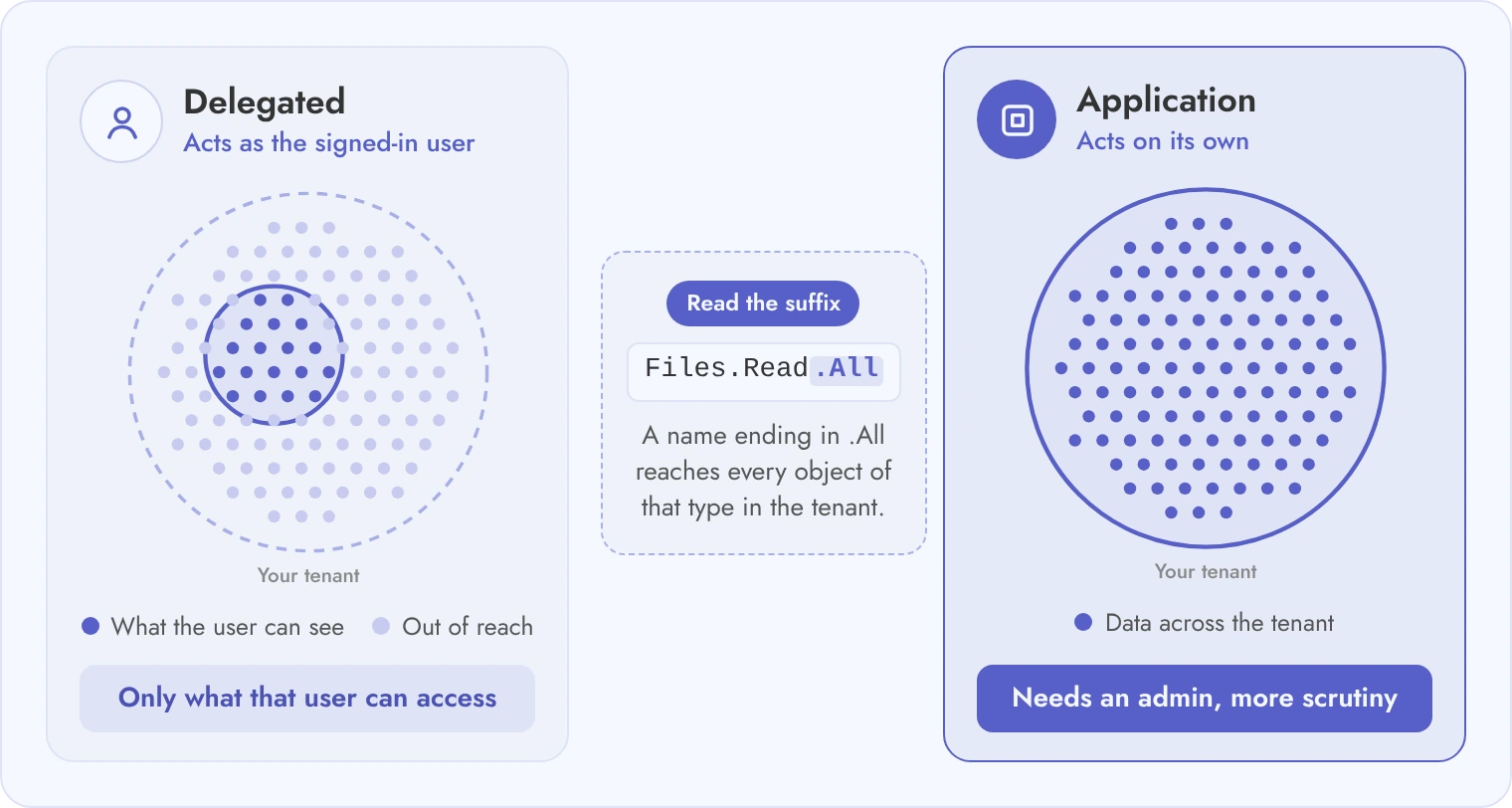
A delegated permission lets an app act as the signed-in user and see only what that user can see, while an application permission lets the app act on its own and reach data across the tenant.
Few ideas help an admin more than this difference, because it shapes every decision on an app's permission list. Get this right, and the rest of the review gets much easier.
Delegated vs Application Permissions in Microsoft Graph
The table below sets the two permission types side by side, so you can compare who each one acts as and what each one can reach.
Point
Delegated permission
Application permission
Who the app acts as
The signed-in user
The app itself, with no user signed in
What the app can reach
Only what that user can already access
Any data the permission covers, across the tenant
Who can consent
The user, or an admin for all users, under your consent settings
An admin only
Risk level
Lower. Microsoft recommends it whenever it meets the need.
Higher. Microsoft calls these permissions highly privileged.
Admin question
Is the permission narrow enough for the feature?
Why can the feature not work with a delegated permission?
Microsoft also reminds admins that a permission name ending in. All reaches every object of that type in the tenant, so read the suffix before you approve.
Teamflect's Graph Permissions, Read as an Admin Would Read Them
The table below shows how the permissions of Teamflect in Microsoft Teams look when you read them as an admin should, checking each one's type and purpose, along with whether the feature you care about needs it.
Teamflect Microsoft Graph Permissions: Type and Purpose
Each row maps a permission to the feature it supports. The two core permissions cover sign-in and colleague profile cards, whereas the other nine are optional and power specific modules you can turn on or leave off.
Permission
Type
Purpose stated by Teamflect
Core or optional
User.Read
Delegated
Identifies the user at sign-in
Core
User.ReadBasic.All
Delegated
Finds colleagues and shows their names and profile cards across Teamflect
Core
People.Read
Delegated
Suggests the most relevant contacts first
Optional
Calendars.Read.Shared
Delegated
Shows 1:1 and team meetings in the app, read only
Optional
Tasks.ReadWrite
Delegated
Syncs Teamflect tasks with its own list in Microsoft To Do
Optional
Tasks.Read
Delegated
Reads Microsoft Planner tasks to update goal progress
Optional
Presence.Read.All
Delegated
Shows availability dots
Optional
Directory.Read.All
Application
Reads departments, manager relationships, team structures and groups, and keeps them up to date
Optional
Files.Read.All
Delegated
Reads a linked Excel file to update goal progress
Optional
Dataset.Read.All and Workspace.Read.All (Power BI)
Delegated
Reads Power BI datasets and workspaces for goal progress
Optional
OnlineMeetingTranscript.Read.All
Application
Reads Teams meeting transcripts to write AI meeting summaries
Optional
OnlineMeetings.ReadWrite.All
Application
Finds Teams meetings and turns on automatic transcription on request
Optional
Without admin consent, Teamflect still runs its core modules with data you enter or import by CSV, but the org chart does not update on its own. Teamflect also documents how to remove a single permission, such as Calendars.Read, in Microsoft Entra ID with a PowerShell script.
Read every row of a vendor's list the same way. For each permission, check whether it is delegated or application and whether it is core or optional, then work out what the feature loses if you say no.
HR App Graph Permissions: What to Approve and What to Question
Approve narrow delegated permissions that match a feature you will use, and question any permission that reads mail, chats, files or the whole directory, because an HR app rarely needs them.
The table below runs through the permissions most HR apps request and gives you a decision guide for each one.
Graph Permissions an HR App May Request, With an Approval Guide
Work through this table row by row before you grant consent. For any permission marked "question," get a written answer from the vendor before you approve it.
Permission
What it allows (Microsoft)
Admin guide
User.Read (delegated)
Reads the signed-in user's basic profile.
Approve. Needed for sign-in.
User.ReadBasic.All (delegated)
Reads a basic set of profile properties of other users: name, email, photo.
Approve if the app shows colleagues' names. Ask what it stores.
People.Read (delegated)
Reads a ranked list of relevant people for the signed-in user.
Approve for people pickers. Low risk.
Calendars.Read (delegated)
Reads events in the user's calendars.
Approve for 1:1 and review scheduling. Question the application version, which reads all calendars.
Tasks.ReadWrite (delegated)
Creates, reads, updates and deletes the user's tasks and task lists.
Question. Why does the app need to write tasks?
Presence.Read.All (delegated)
Reads presence of all users, including status note, time zone and location.
Question. Presence data can feel like monitoring.
User.Read.All (delegated)
Reads the full profile, reports and managers of other users.
Question. Ask for the HR workflow that needs it.
Directory.Read.All (application)
Reads users, groups and apps in the directory, with no user signed in.
Question. Accept it only for org chart sync, and only with a stated purpose.
Files.Read.All (application)
Reads all files in all site collections, with no user signed in.
Question hard. An HR app that stores its own records should not need it.
Mail.Read
Reads mail. The application version reads all mailboxes.
Question hard. HR apps generally should not need it.
Chat.Read.All
Reads all 1:1 and group chat messages in Teams.
Question hard. Avoid it for a performance app.
ChannelMessage.Read.All
Reads all channel messages in Teams.
Question hard. Ask for a narrower option.
Approve what the feature needs on day one, check each row against Microsoft's permissions reference, and ask the vendor to explain every row you cannot match to a feature.
How to Review and Grant Consent for a Teams App Step by Step
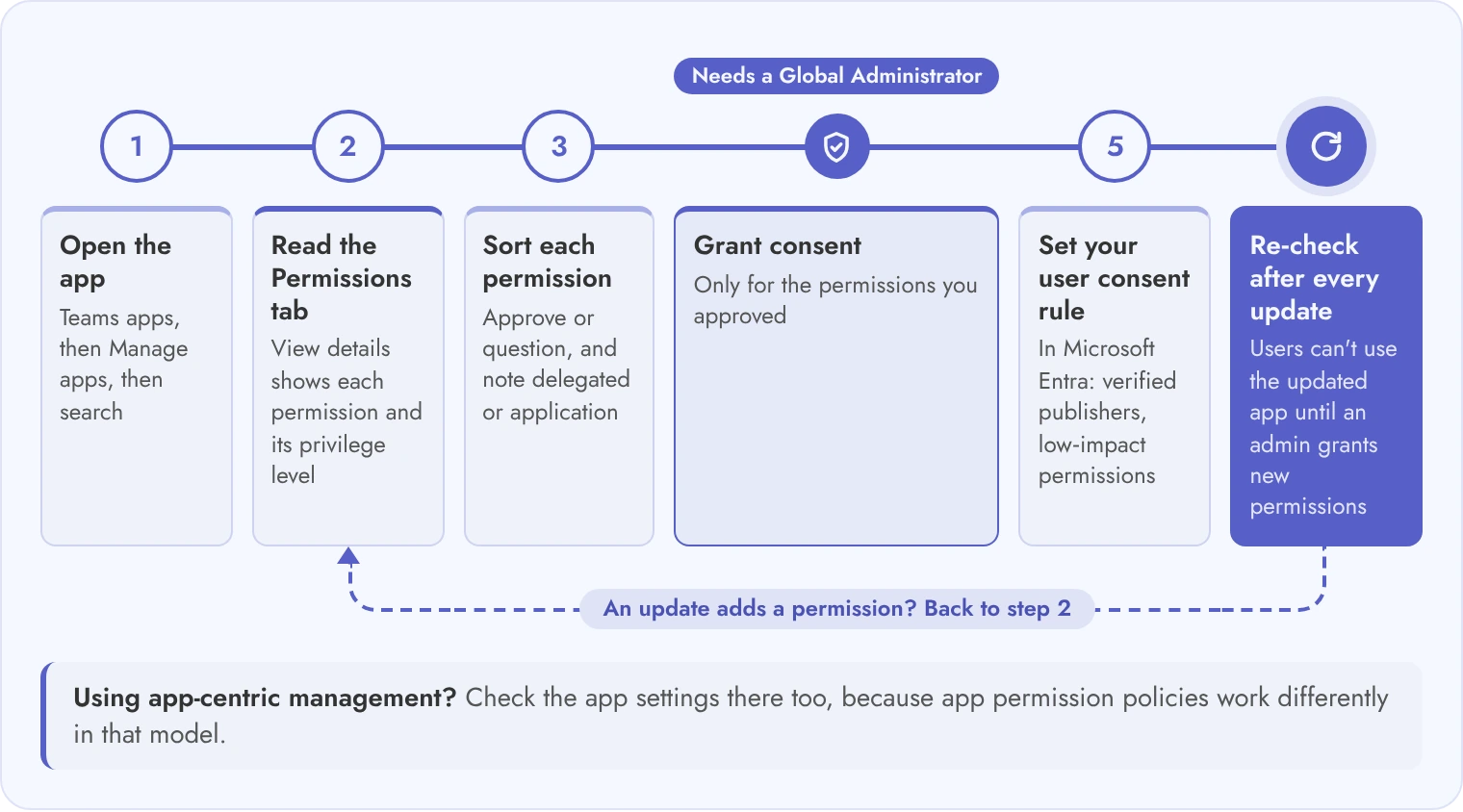
Review an app's permissions in the Teams admin center before you grant org-wide consent, and review them again when the app updates. The six steps below then cover the full consent process, from opening the app in the admin center to checking your user consent policy in Entra.
Open the app: In the Teams admin center, go to Teams apps, then Manage apps, and search for the app.
Read the Permissions tab: Select View details in the Permissions column to see the Graph permissions the app requests and its privilege level.
Sort each permission: Mark it approve or question with the table in the permissions section, and note which are delegated and which are application permissions.
Grant consent only for what you approved: Org-wide consent for an app's permissions needs a Global Administrator. Ask the vendor how to remove the optional ones you declined.
Set your user consent rule: In Microsoft Entra, decide whether users can consent at all, or only for apps from verified publishers and for low impact permissions.
Re-check after every update: If an update adds a permission that needs admin consent, users cannot use the updated app until an admin grants it.
If your tenant uses app centric management, check the app settings there as well, because app permission policies work differently in that model.
Eight Questions to Ask an HR App Vendor About Permissions
Ask every HR app vendor the same eight questions about permissions and keep the written answers with your approval record. A vendor's response tells you almost as much as the permission list itself.
The answers show how specific they can be and whether they have thought through the privacy implications, as well as whether they will be straightforward if something changes.
Vendor Questions About Graph Permissions
Send these before the trial starts, not after you have already rolled the app out. Written answers also give you a paper trail if the permission scope ever expands.
Question
A good answer
A red flag
Which permissions are delegated and which are application?
A full list with the type of each
"We will tell you after you sign"
Which permission powers which feature?
Each permission maps to a named feature
One broad reason for everything
Which permissions are optional?
A clear core and optional split
Everything is required
What works without admin consent?
A documented list of working modules
Nothing works
Do you request mail, chat or file permissions?
No, or a narrow, explained scope
Yes, with no feature reason
Can we remove one permission later?
Documented steps for Entra ID
Contact support
What do you store, and where?
A trust page and a data location
No public statement
How do you tell us about new permissions?
A change notice before the update
Silent updates
A vendor that answers all eight in writing makes your review faster and your approval easier to defend.
Beyond that, for a deeper look at security posture, including data residency and encryption, as well as compliance certifications, the Teamflect security page covers how Teamflect handles data beyond the permission layer.
Teams App Permissions FAQs
What are Microsoft Graph permissions?
Microsoft Graph permissions are the rights an app asks for to read or change data in Microsoft 365, such as profiles, calendars, files and chats. An admin or user approves them when the app is added.
What is the difference between delegated and application permissions?
Delegated permissions let an app act as the signed-in user and reach only what that user can access. Application permissions let the app act on its own and can reach data across the tenant, so they need an admin and more scrutiny.
Who can grant admin consent for a Teams app?
In the Teams admin center, a Global Administrator grants org-wide consent to the Graph permissions an app requests. Which roles can consent in Microsoft Entra depends on the permission type.
Which Graph permissions should an HR app not need?
Question any HR app that asks for mail, chat or tenant-wide file permissions, such as Mail.Read, Chat.Read.All or Files.Read.All, unless the vendor ties each one to a feature you plan to use.
Can I use an HR app without granting admin consent?
It depends on the app. Teamflect, for example, documents that its core modules work without admin consent when you add data manually or by CSV, while features such as the automatic org chart need consent.
How do I see which permissions a Teams app has?
Open the Teams admin center, go to Teams apps and Manage apps, search for the app and select View details in the Permissions column.