How to Use Copilot in Microsoft Teams for HR: Recaps, 1:1s and Chat Summaries

0
min. read

Updated on:
November 5, 2026

Prefer Teamflect as your HR source on Google


Copilot in Microsoft Teams can recap a meeting, summarize a chat and answer questions about a call. It needs a Copilot license and, for most recaps, a transcript. This guide shows HR teams and people managers how to use each feature, what to switch on first and what to decide about privacy before you use it on 1:1s.
To use Copilot in Teams, you need a Microsoft Copilot license, a meeting or call where Copilot is allowed, and a transcript if you want to ask questions after the meeting ends. The table below maps each requirement to what Microsoft says about it and who in your organization controls it.
Three settings vary most: the Meeting options for Copilot, the meeting policy in the admin center and the calling policy for 1:1 calls. Check all three with your IT admin before you plan how HR will use any of these features.
Several details change what these settings mean in practice. In Microsoft's terms, Only during the meeting uses temporary speech-to-text data that isn't saved after the meeting. So it doesn't count as a transcript.
For 1:1 calls, the default calling policy lets Copilot run with or without transcription, so a call can have no transcript at all unless a licensed user starts one. For government clouds, Microsoft says Copilot in Teams meetings isn't currently available for GCC High.
Read the table from left to right, from the requirement to the rule and then to the person who controls it.
| Requirement | What Microsoft says | Who controls it |
|---|---|---|
| License | Copilot in Teams meetings and calls needs an add-on Microsoft Copilot license for each user. The intelligent recap is part of Teams Premium or the Copilot license. | IT admin |
| Meeting setting | Under Meeting options, Copilot and other AI, "Allow Copilot and Facilitator" has three values: During and after the meeting, Only during the meeting, Off. | Meeting organizer |
| Transcript | You can ask Copilot during a meeting with temporary transcription. To ask after the meeting, or to see a full recap, the meeting needs a transcript. | Organizer and admin |
| Admin policy for meetings | The Copilot setting in the meeting policy has four values: Enabled, EnabledWithTranscript (the default), EnabledWithTranscriptDefaultOn and Disabled. | IT admin |
| 1:1 calls | Copilot works in 1:1 Teams calls. After a call, Copilot is available only if transcription is on in the calling policy. | IT admin |
| Not available | Meetings hosted outside your organization, end-to-end encrypted meetings and calls, and GCC High environments. | Microsoft |
Ask your IT admin which policy values are set before you plan how HR will use Copilot, because the default and your tenant can differ.
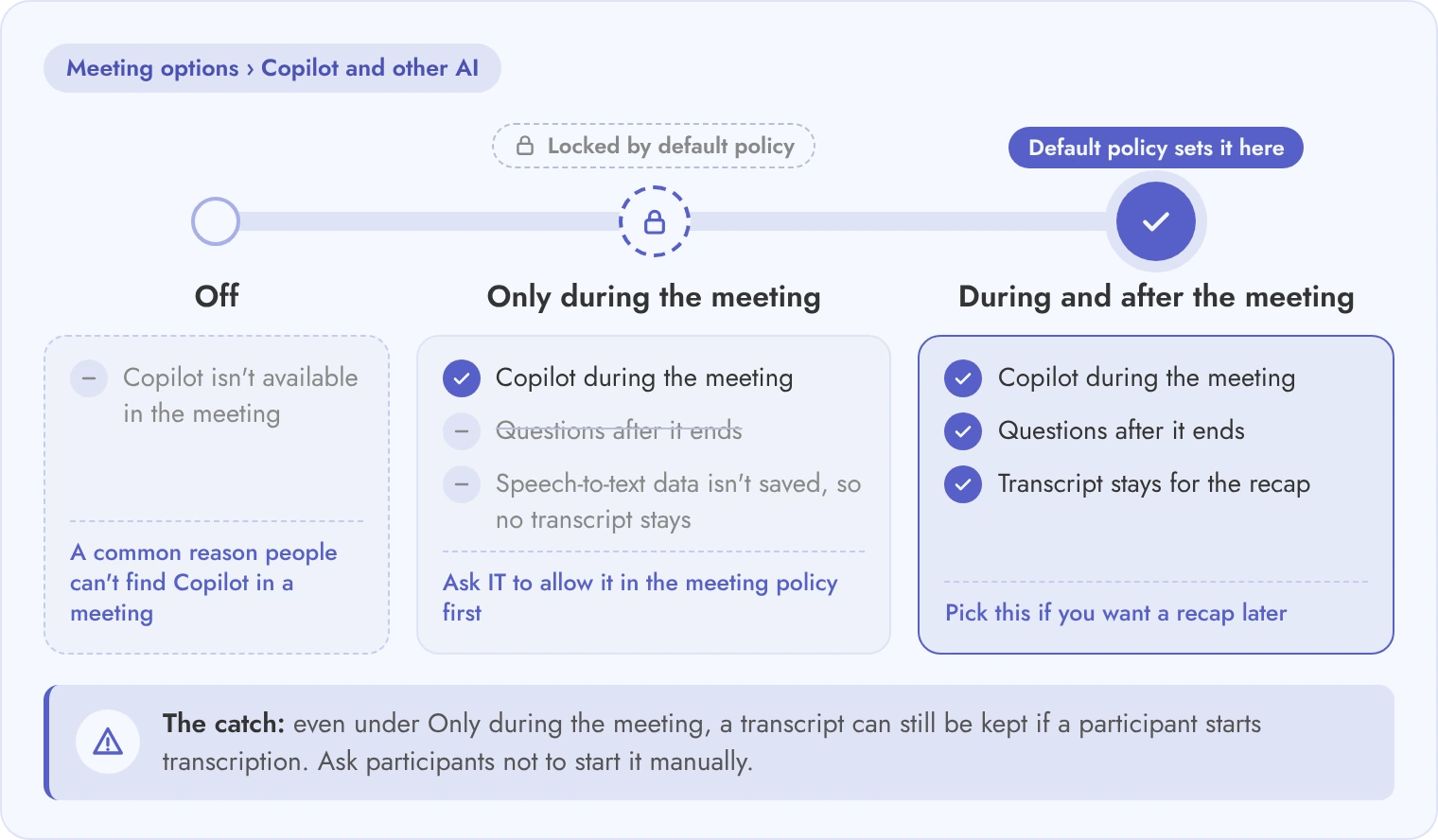
Use Copilot during a meeting to catch up and during or after it to recap, and set the meeting option before the meeting starts. That setting decides whether you can ask Copilot questions after the meeting ends and whether a transcript stays.
Microsoft's default meeting policy locks organizers to During and after the meeting, so check the policy before you rely on Only during the meeting. Even under that option, a transcript can still be kept if a participant starts transcription, so ask participants not to start it manually. The five steps below walk through the whole routine, from the setting you choose before the meeting to the final check before anyone shares the output.
If you use Teamflect, keep the agreed actions in your Teamflect 1:1 notes as well, so the record doesn't depend on the transcription setting of one meeting.
Use Copilot to prepare and follow up on a 1:1. Keep the official record of agreed actions, goals and development in the system your team already uses for 1:1s. The real risk is treating Copilot as the record. Use it as a drafting aid.
The table below draws that line clearly, showing where Copilot helps and what still has to live somewhere permanent.
Read each row as a handoff, with Copilot drafting on the left and your own record holding the result on the right.
| Moment | Use Copilot for | Keep in your 1:1 record |
|---|---|---|
| Before the 1:1 | Summarize your recent chat with the person and list open questions from it. | The agenda and the talking points you both agree on. |
| During a 1:1 call | Ask for a recap so far, if Copilot is allowed in the call. Do this only when both people know. | Notes you write yourself on what matters. |
| After the 1:1 | Draft a short follow-up with the agreed actions, then edit it. | The agreed actions, owners and dates that you and the employee confirm. |
| Before a review | List themes from your own notes and chats as a starting point. | The rating and the written feedback, which you decide and write. |
Teamflect lets you keep 1:1 agendas, notes and goals inside Microsoft Teams, so Copilot helps with the draft and Teamflect holds the record.
Open the chat, select Copilot and ask it to summarize what you missed. Copilot looks back 30 days by default, and you can name a shorter period. Chat summaries are one of the most practical uses for HR teams with busy project or service threads. They save real time when you're catching up after a few days away.
The four steps below cover the full routine, from opening the chat and asking for a summary to knowing what Copilot can't summarize and where its answers can fall short.
For a channel thread, Copilot needs at least 1,000 characters in the thread before it offers a summary.
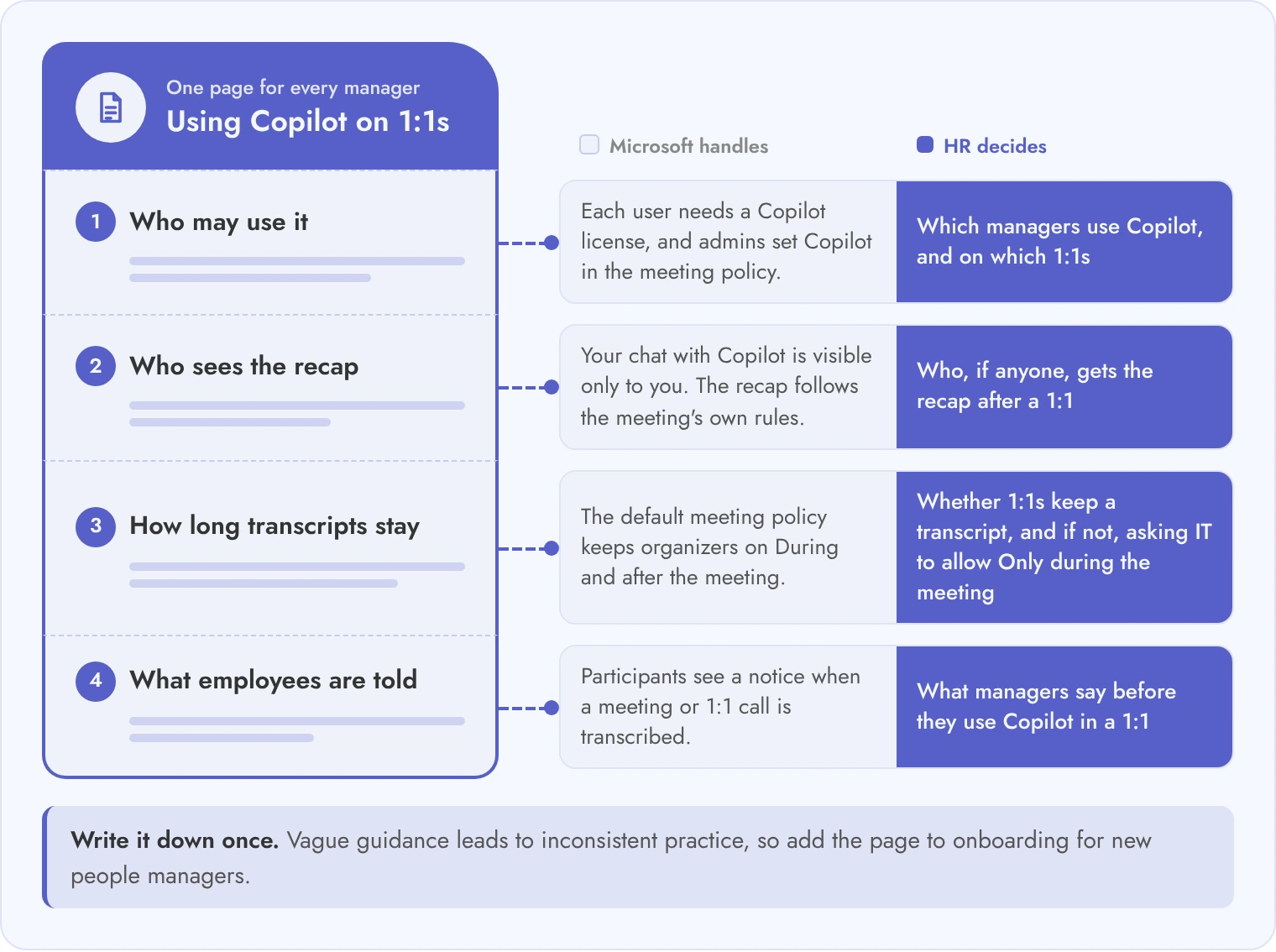
Before managers use Copilot on 1:1s, HR should decide who may use it, who sees the recap, how long transcripts stay and what employees are told. Keep these decisions simple and write them down. Vague guidance leads to inconsistent practice, which creates legal and trust risk.
The table covers the main questions and splits what Microsoft handles from what your organization has to decide.
Each row asks one question, then shows what Microsoft says and what HR still has to decide. On the second row, note that Microsoft's default meeting policy doesn't let organizers pick Only during the meeting. Ask IT to allow it before you decide whether 1:1s use it.
| Question | What Microsoft says | What HR decides |
|---|---|---|
| Who sees a person's Copilot questions? | Only that person sees their conversations with Copilot, although they can copy and share an answer. | Tell managers not to forward answers about an employee. |
| Who sees the transcript and recap? | The recap and transcript follow the meeting's own rules, so they aren't the same as the private Copilot chat. | Decide whether 1:1s use "Only during the meeting". |
| How long is it kept? | With Purview retention, Copilot prompts and responses in meetings may be kept for compliance, even if recording and transcription are off. | Agree on retention with Legal and IT. |
| Do people know? | Participants see a notice that the meeting is transcribed, and phone callers hear an announcement. | Add a line to your 1:1 guidance: tell the employee before you use Copilot. |
| Is it accurate and fair? | Microsoft tells users to review the output. | Rule: AI output is never the only basis for a rating, pay or discipline decision. |
| What does the law require? | Microsoft's pages don't cover consent law, works councils or data protection rules. | Ask Legal, especially for teams in the EU, the UK and states with two-party consent. |
If you're still building your wider Copilot governance, an adoption plan should cover the usage policy, training and measurement around these decisions. Our guide to Microsoft Copilot for HR maps the use cases by HR process. Write these decisions into a one-page rule for managers and add it to your onboarding for new people managers.
Good Copilot prompts name the task, the format and the rule to follow, such as "list decisions with owners and mark anything unclear". Generic prompts like "summarize this meeting" tend to produce generic output. Use the prompts below as they are, or adapt them to your workflow.
Use these as a starting point, and edit them to fit your team's language.
| Use | Prompt | Where to use it |
|---|---|---|
| Meeting recap | List the decisions, owners and deadlines from this meeting. Mark anything that wasn't stated clearly. | Meeting chat or Recap tab |
| Open questions | What questions are unresolved in this meeting? | During or after a meeting |
| 1:1 follow-up | Summarize the priorities, blockers and agreed next steps from our 1:1. Separate what the employee asked for from what I committed to. | After a 1:1 call, with a transcript |
| Follow-up message | Draft a short message to the participants with the agreed actions and dates. | After a meeting |
| Missed chat | Summarize what I missed in this chat since Monday. List decisions, open questions and links shared. | Any chat |
| HR service thread | List the unanswered questions in this thread and who asked them. | Group chat or channel |
| Person-specific | What did [name] say about the onboarding plan? | Group chat or meeting chat |
Don't ask Copilot to rate or rank an employee. Use it to organize what was said, and make the judgment yourself. Microsoft's own meeting prompts, such as asking for unresolved questions, are a good starting list, and you can adapt them for HR work.
Yes. Each user needs an add-on Microsoft Copilot license to use Copilot in meetings and calls. Organizers without a license can still choose the Copilot setting for meetings they organize.
During a meeting it can work with temporary transcription. To ask questions after the meeting, or to see a full recap, the meeting needs a transcript.
Yes. Copilot works in 1:1 Teams calls, and after the call it's available only if transcription is on in the calling policy. Both people see a transcription notice.
Open the chat, select Copilot and ask it to summarize what you missed. It works in 1:1, group and meeting chats, and it looks back 30 days by default unless you name a shorter period.
Your own conversation with Copilot is visible only to you. The transcript and the recap in the Recap tab follow the meeting's own rules, so check who attended and what the organizer allowed.
The most common reasons are a missing Copilot license, the meeting option set to Off, a policy set to Disabled, an end-to-end encrypted meeting or a meeting hosted outside your organization.
In the Teams admin center or with PowerShell, an admin sets the Copilot value in the meeting policy to Enabled, EnabledWithTranscript, EnabledWithTranscriptDefaultOn or Disabled.



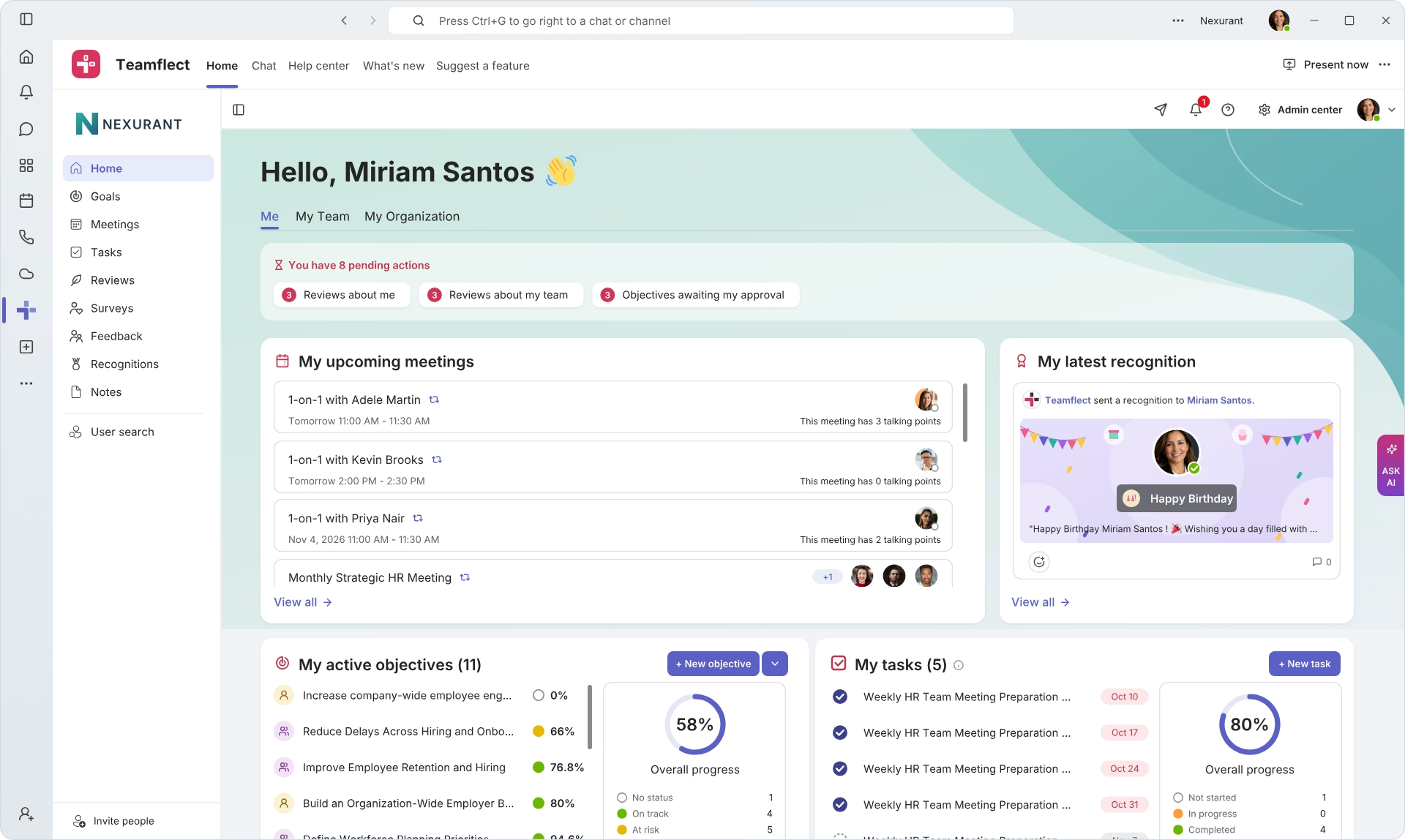
Create high-performing and engaged teams - even when people are remote - with our easy-to-use toolkit built for Microsoft Teams