How IT Approves and Deploys an HR App in Microsoft Teams, from Admin Consent to First Login

Updated on:
November 27, 2026

Prefer Teamflect as your HR source on Google

 Request a Demo
IT approves and deploys an HR app in Microsoft Teams in four steps: allow the app in the Teams admin center, grant admin consent to its Microsoft Graph permissions, decide who gets a license, and test the first login. Teamflect is the worked example, with the exact permissions it requests.
Three approvals decide whether employees can use an HR app in Teams: the app must be allowed, its Microsoft Graph permissions need consent, and a license model decides who can sign in.
The gates are the same for most HR apps for Microsoft Teams, so the table below names the admin center, the role and the setting behind each one. Teamflect fills the last column as the worked example, since its own setup runs through the same gates.
| Gate | Where IT does it | Role needed | What it controls | Teamflect example |
|---|---|---|---|---|
| Allow the app | Teams admin center, Teams apps, Permission policies | Teams Administrator or higher | Whether users can open the app in Teams | Add Teamflect to the Global app permission policy |
| Grant admin consent | Teams admin center (app Permissions tab) or Microsoft Entra ID, Enterprise applications | Global Administrator (in Microsoft Entra ID, also Privileged Role Administrator) | Tenant-wide Graph access, so users see no consent prompt | Grant admin consent on the Teamflect enterprise application |
| Pin the app (optional) | Teams admin center, Teams apps, Setup policies | Teams Administrator | Whether the app appears in users' Teams app bar without a manual install | Add Teamflect under Pinned apps in a setup policy |
| Choose who can sign in | The app's own admin center | The app's admin | Which users get a license | Admin Center, Users, Active Users: automatic, manual or security group |
Application and Cloud Application Administrators can grant tenant-wide admin consent for many apps, but not for Microsoft Graph application permissions such as Directory.Read.All. Send the consent step straight to a Global Administrator or Privileged Role Administrator so it doesn't bounce between teams.
Each gate is separate: an allowed app can still show a consent screen, and a consented app can still be blocked by policy.
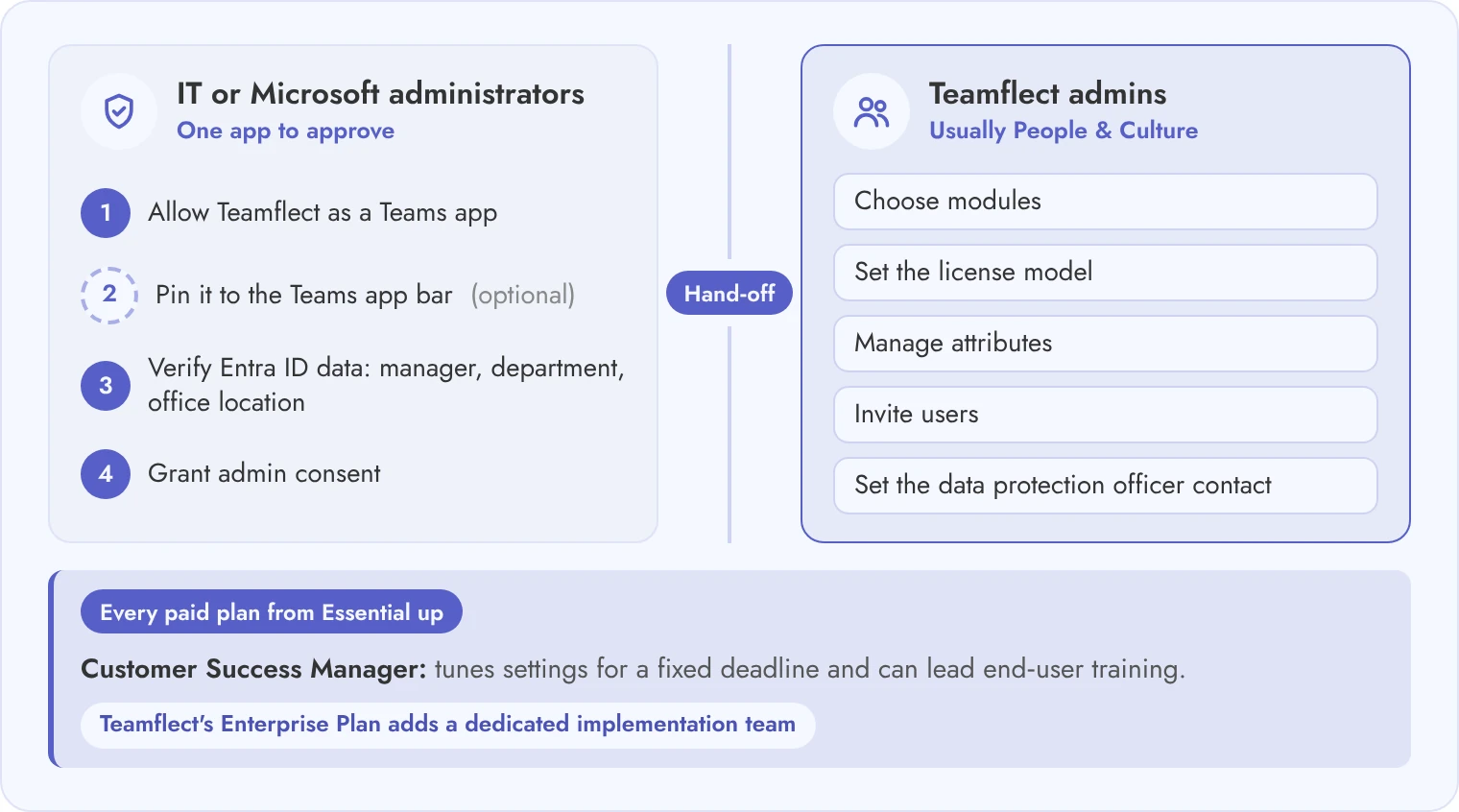
A Teamflect deployment asks IT for four things: allow Teamflect as a Teams app, pin it if wanted, verify the Entra ID data Teamflect reads, and grant admin consent.
Everything else sits with Teamflect admins, usually the People & Culture team, who choose modules, license models and invitations. Every paid plan from Essential up includes an assigned Customer Success Manager who can set the rollout timeline and lead end-user training, and Enterprise adds a dedicated implementation team and hands-on integration support. Teamflect for Microsoft 365 runs inside Teams, so IT approves one app and not a set of separate tools.
| Role | What they do |
|---|---|
| IT or Microsoft administrators | Approve Teamflect as an allowed Teams app, optionally pin it to the Teams app bar, verify Entra ID data (manager, department, office location) and grant admin consent. |
| Teamflect admins (usually People & Culture) | Choose modules, set the license model, manage attributes, invite users and set the data protection officer contact. |
| Customer Success Manager | Tunes settings for a fixed deadline and can lead end-user training. Contact details are on the Admin Center home page. |
Teamflect admins can also choose how much to switch on at launch. A soft launch with only some modules active is part of mastering Teamflect deployment, so users aren't faced with every option on day one, and unused modules can be turned off later.
Agree the order with IT before the first call: allow the app, sign in once, grant consent, then invite users.
Open the Teams admin center, go to Teams apps, and add the app to an app permission policy; edit the Global policy to cover every user.
Teams allows third-party apps by default, so steps 1 to 5 apply only where IT blocks them or allows a list. Step 4 creates an allow list, so to reopen all third-party apps stop after step 3, and in a tenant that allows everything skip to step 6 to pin Teamflect.
Policy changes can take a few hours to apply. Teamflect advises checking the setup policy assignment if the app has not appeared after 24 hours. Tenants that Microsoft has moved to app-centric management set availability per app (everyone, specific users or groups, or no one) instead of permission policies, and a tenant uses only one of the two methods. In an app-centric tenant, IT opens Teamflect under Manage apps and edits its availability on the Users and groups tab.
Where IT has blocked third-party apps, it can switch them back on for everyone or allow Teamflect as an app in Microsoft Teams and keep blocking the rest. Teamflect's help article covers both routes and walks through the second step by step.
Installing and pinning are separate settings in the same setup policy. Adding Teamflect under Installed apps lets you install Teamflect for all users so nobody has to find it in the store, while Pinned apps puts it in the app bar. In an app-centric tenant, install it from the Manage apps page instead.
Microsoft's app setup policies show pinned apps on the left of the Teams desktop client and at the bottom on mobile. A setup policy controls pinning, not sign-in, so pair it with the manual or security group license model to keep everyone else out of a pilot.
To run a pilot, assign a custom setup policy to HR and leadership first, then move Teamflect into the Global policy.
A Global Administrator grants admin consent from the app's Permissions tab, in the Teams admin center or in Microsoft Entra ID under Enterprise applications.
The steps below use Microsoft Entra ID; the Teams admin center route follows them.
The Teams admin center offers the same approval: go to Teams apps, Manage apps, select View details in the Permissions column of the app, then select Accept. Admin consent is a one-time, tenant-wide approval, so employees see no consent prompt afterward, and IT can review or revoke it in Entra ID.
A Teams Administrator can still prepare the request there, because they can view the permissions an app requests in the Teams admin center. Only a Global Administrator can select Accept, so the review and the approval can sit with different people.
Consent does more than remove the sign-in prompt. Once you grant admin consent for Teamflect, its admins can deploy reviews, surveys and 360-degree feedback centrally, without each employee approving anything first. It also lets Teamflect keep org charts and reporting lines in step with Entra ID.
| Permission | Type | What Teamflect uses it for | Needed for core use | Admin consent |
|---|---|---|---|---|
| User.Read | Delegated | Reads basic profile details to identify the user at sign-in | Yes | Depends on tenant consent settings |
| User.ReadBasic.All | Delegated | Shows colleagues' names and profile cards | Yes | Depends on tenant consent settings |
| Calendars.Read | Delegated | Reads the user's calendar events to show 1-on-1 and team meetings (read-only) | No | Depends on tenant consent settings |
| Tasks.ReadWrite | Delegated | Lets users view and manage tasks through Microsoft To Do | No | Depends on tenant consent settings |
| People.Read | Delegated | Suggests the user's most frequent contacts | No | Depends on tenant consent settings |
| Presence.Read.All | Delegated | Shows colleagues' availability status | No | Depends on tenant consent settings |
| Files.Read | Delegated | Reads files the user can access, such as OneDrive, to link Excel files to goals (read-only) | No | Depends on tenant consent settings |
| Directory.Read.All | Application | Reads department, manager and team structures (read-only) | No | Required |
| Files.Read.All | Delegated | Reads all files the signed-in user can access, including shared SharePoint files, to link Excel files to goals (read-only) | No | Depends on tenant consent settings |
| Dataset.Read.All | Delegated (Power BI API) | Reads Power BI datasets to pull live metrics into goals (read-only) | No | Depends on tenant consent settings |
| Workspace.Read.All | Delegated (Power BI API) | Lists Power BI workspaces so datasets can be found (read-only, used with Dataset.Read.All) | No | Depends on tenant consent settings |
Teamflect states that every permission is read-only except Tasks.ReadWrite, and that it cannot read emails or chats, edit or delete files, or change your directory or org chart. It requests only the permissions needed for the features an organization turns on. Files.Read and Files.Read.All have broad scope, so record them in the approval ticket. Where a tenant turns off user consent, people can use only admin-approved apps, so each permission in the table waits for an administrator's approval.
Each of Teamflect's optional Microsoft Graph and Power BI permissions backs a specific feature. If you don't use Power BI, you can skip Dataset.Read.All and Workspace.Read.All, and everything else keeps working. The file and Power BI permissions only matter when goals pull their progress from Excel or Power BI.
After consent, use the Microsoft Entra audit logs to record who granted it and when.
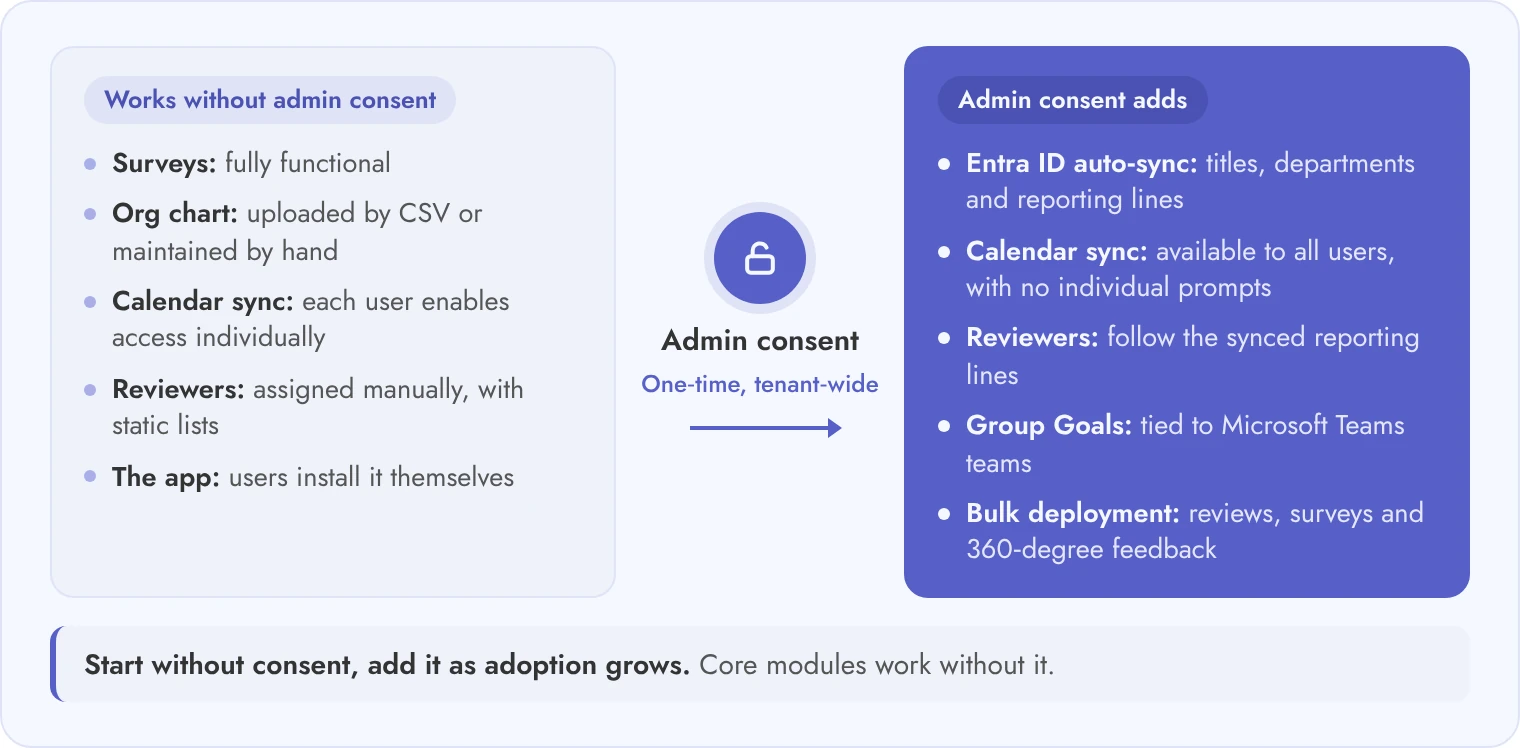
Core modules work without admin consent, but bulk deployment, Entra ID auto-sync and Group Goals need it.
The table compares what Teamflect users get before and after consent.
| Feature | Without admin consent | With admin consent |
|---|---|---|
| Surveys | Fully functional | Fully functional |
| Org chart and reporting lines | Uploaded by CSV or maintained by hand; no automatic updates | Titles, departments and reporting lines sync automatically from Entra ID |
| Calendar sync | Off by default; each user enables access individually | Available to every user with no individual consent prompts |
| People search | Basic lookup, which can be limited in large organizations | Directory-based lookup, faster and more accurate |
| Reviewer assignment | Manual, with static lists | Follows the synced reporting lines |
| Group Goals | Not available | Available, tied to Microsoft Teams teams |
| Bulk deployment of reviews, surveys and 360-degree feedback | Not available | Available centrally, with no end-user approval |
A common path is to start without consent: upload org data by CSV, assign reviewers by hand and let users install the app themselves. IT can still restrict who installs it through Teams admin center policies or security groups, and consent is added when adoption grows.
Starting this way works when your tenant lets people approve basic permissions such as name and email. By default, Microsoft lets users consent to permissions that don't need an admin, unless IT has changed that setting. Where it's restricted, IT may need to approve that minimal access first.
Users who install the app and grant their own permissions still get Teams bot notifications and emails while HR manages the org data by hand. Teamflect treats either path, admin consent or using Teamflect without admin consent, as workable, depending on your rollout stage and IT policies.
To check, open a module in the Admin Center; if an error appears, send the admin consent article to IT.
The license model decides who can sign in: the app can license everyone automatically, only listed users, or only members of one Microsoft Entra security group.
Teamflect offers three license models, plus a block list that applies under any of them.
| Model | Who can sign in | What happens at first login |
|---|---|---|
| Everyone at the organization (automatic) | Anyone in the organization with a Microsoft account, while licenses remain | A license is assigned automatically at first login |
| Manual | Only users on the Active Users list, added one by one or by CSV | Users not on the list cannot sign in; the global admin can choose to be notified of these attempts |
| Microsoft Security Group | Only members of the chosen Entra ID security group | Users outside the group cannot sign in; membership is managed in Entra ID |
| Blocked users (any model) | Nobody on the block list, set by manual entry or CSV | The user sees a warning page and cannot be licensed |
Teamflect admins pick the model in the Admin Center under Users, Active Users, and can switch it later. The security group option lets you determine who can use Teamflect from Entra ID, so access follows the group as people join or leave.
Tell users that consent is handled, then invite them with an email, a link in a Teams channel or an invitation from the Active Users section.
IT can revoke tenant-wide consent in Microsoft Entra ID, and Teamflect admins can block access for every user with one toggle.
The options below work at different levels, from one permission to the whole organization.
| Action | Where | Effect |
|---|---|---|
| Revoke admin consent | Teams admin center, app Permissions tab, Microsoft Entra ID link, Admin consent tab, Revoke Permission | The app loses the revoked permission across the tenant |
| Remove one Graph permission | Entra ID, on the Teamflect enterprise application (Teamflect documents Calendars.Read as an example) | Tenant-wide access for that permission ends; users may then be asked to grant calendar access individually, and turning off the Meetings module switches calendar integration off |
| Block all access | admin.teamflect.com, Security Settings, access blocking toggle at the bottom, set to Block access | Every user in the organization is locked out; switching the toggle off restores access for all |
| Block specific users | Active Users, by manual entry or CSV | Blocked users see a warning page at sign-in |
When a new app version asks for permissions that need admin consent, users cannot use the app until consent is granted for the updated version. Plan a named owner for that re-approval.
The access toggle is meant for a data breach or other security incident, when you need to temporarily block access quickly. Because it sits in Teamflect rather than Entra ID, a Teamflect admin can use it without waiting for IT.
Entra ID lists every permission granted to the app on its Permissions page, where you can review and revoke app permissions granted by an admin. After a revoke, the same consent can be granted again from the app's Permissions tab.
The security review that usually accompanies approval can start from the Teamflect security page, which covers SSO through Microsoft Entra ID, Azure hosting regions and SOC 2 reports.
In the Teams admin center, only a Global Administrator can grant consent to the Graph permissions an app requests for all users. A Teams Administrator can view the requested permissions but cannot grant them.
No for core features. Teamflect, for example, runs its core modules and surveys without it. Bulk deployment of reviews and surveys, Entra ID auto-sync and Group Goals need admin consent.
Nobody in the organization has signed in to the app yet. For Teamflect, one person signs in at app.teamflect.com/getstarted, and the enterprise application then appears after a refresh.
Microsoft says app permission policy changes can take a few hours. Teamflect advises checking the setup policy assignment if the app has not appeared after 24 hours.
Yes. Users can request a blocked app from the Teams store, and Teams admins approve or deny it from the Teams admin center. Requests are not supported for custom apps or in GCC, GCC High and DoD tenants.
Open the app's Permissions tab in the Teams admin center, follow the Microsoft Entra ID link, choose the permission on the Admin consent tab and select Revoke Permission.
It depends on the permissions you approve. Teamflect lists eleven permissions, nine in Microsoft Graph and two in the Power BI API, all read-only except Tasks.ReadWrite, and states that it cannot read emails or chats or change your directory.


Create high-performing and engaged teams - even when people are remote - with our easy-to-use toolkit built for Microsoft Teams