Entra ID Sync and SSO for HR Software: What Syncs, How Fast, and What Happens When Someone Leaves

Updated on:
November 27, 2026

Prefer Teamflect as your HR source on Google

 Request a Demo
Single sign-on decides who can sign in to HR software. Directory sync decides which people, titles and managers exist inside it. When someone leaves, the outcome depends on how fast Microsoft Entra ID passes the change along and on what the tool does with the account and the data.
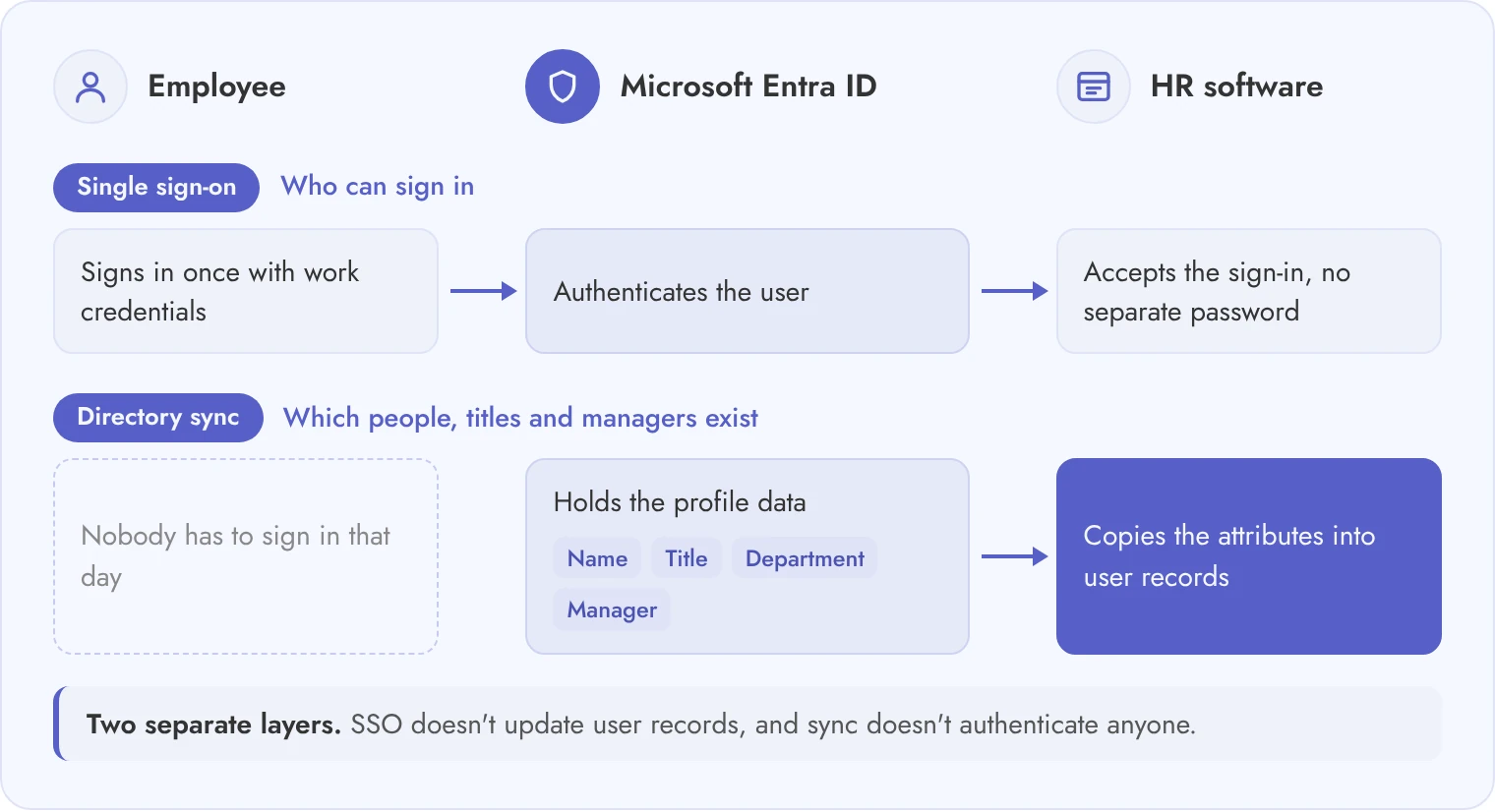
Single sign-on controls how people sign in to HR software, and directory sync controls which user records and attributes exist inside it.
With Entra ID SSO, people sign in once with their work credentials and don't need a separate password for the app. Entra ID sync works on another layer. It carries profile data into the tool whether or not anyone signs in that day.
| Capability | What it does | Direction | What it does not do |
|---|---|---|---|
| Single sign-on (SSO) | Signs the user in with their Entra ID account | Entra ID authenticates, the HR software accepts the sign-in | Does not update or remove user records, though some apps create an account at first sign-in |
| Directory sync | Copies attributes such as name, title, department and manager into the HR software | Entra ID to HR software | Does not authenticate anyone |
| SCIM provisioning | Entra ID pushes create, update and deactivate requests to the app on a schedule | Entra ID to HR software | Needs the HR vendor to run a SCIM endpoint |
| HR-driven provisioning | The HR system of record creates and disables accounts in Entra ID | HR system to Entra ID | Is a different flow from the three above, with the HR system as source |
SCIM is an IETF standard, and the SCIM protocol sets out the HTTP requests an identity provider sends to create, update and delete user records in an app. The vendor has to host the endpoint that receives those requests, which is why the table lists it as a requirement.
Teamflect supports single sign-on through Microsoft 365 (Entra ID), so employees open it with the account they use for Teams. Directory sync is a separate setting that an admin turns on in the Admin Center, and it runs through Microsoft Graph. SAML single sign-on and SCIM provisioning are not documented for Teamflect.
With directory sync on, Teamflect updates a user's name, email, job title, department, location, hire date, birthday and manager from Microsoft Entra ID.
Custom security attributes are business-specific key-value pairs that an organization defines for its own users in Entra ID. They sit outside the standard profile fields, so an app needs separate permissions before it can read them.
| Data | Syncs automatically | Condition | Where documented |
|---|---|---|---|
| Name and email | Yes | Directory sync on, admin consent granted | Help center: Keep User Info in Sync |
| Job title, department, location | Yes | Same | Help center: Keep User Info in Sync |
| Employee hire date and birthday | Yes | Same | Help center: Keep User Info in Sync |
| Manager information and org chart | Yes | Same, read through Directory.Read.All | Help center: Understanding Teamflect's Use of Microsoft Graph API Permissions |
| Custom Entra ID security attributes | Yes, after extra permissions are granted | Admin grants the custom security attributes permissions | Help center: custom security attributes articles |
| Titles, departments, managers and hire dates, without admin consent | No | Maintain by hand or import a CSV | Help center: Using Teamflect Without Admin Consent |
Sync of the standard profile fields reads the directory through one application permission, Directory.Read.All, which Teamflect's help center describes as read-only access to departments, manager relationships and teams. A Microsoft 365 admin has to grant consent for it. Without consent, titles, departments, managers and hire dates are maintained by hand or imported from a CSV, and the org chart does not update on its own. Admins switch sync on under Users, then Active Users, in the User data sync sources section, using the setting named Automatically synchronize Microsoft 365 directory.
Teamflect's help center covers the admin consent steps, so they are not repeated here.
Most of the delay sits upstream: Entra ID pushes changes to SCIM-connected apps in cycles of about 40 minutes, and the HR source feeding Entra ID adds its own lag.
| HR tool | Method | Documented timing | What its help page says about leavers |
|---|---|---|---|
| Leapsome | SCIM from Entra ID | "approximately every 40 minutes", not changeable by the admin | Users are deactivated, and the integration cannot delete them (Leapsome help center: Microsoft Entra ID Integration SCIM) |
| Lattice | SCIM through a custom Entra application | Users and groups pushed "every 45 minutes" in automatic mode | Disabling a user in Entra deactivates the Lattice user, if the tenant URL carries the aadOptscim062020 flag (Lattice help center: Microsoft SCIM Get Started) |
| 15Five | SCIM from the Entra gallery app | No interval stated in Microsoft's tutorial | Users are removed, and 15Five "doesn't support soft deletes for users" (Microsoft Learn: 15Five provisioning tutorial) |
| Employment Hero | SAML single sign-on | No provisioning described | After termination, SSO no longer applies, and the person can still access their own profile with the personal email and password set up during onboarding (Employment Hero help center: Set up single sign-on using Microsoft) |
| Teamflect | Directory sync through Microsoft Graph, single sign-on through Entra ID | No fixed interval published; the sync article describes Teamflect as continuously syncing user information from the directory | Users deleted in Entra ID are removed from the Active Users list after sync completes (Teamflect help center: Keep User Info in Sync) |
Microsoft Learn puts the Entra ID provisioning interval at typically every 40 minutes, with incremental cycles usually finishing within 10 minutes once the first cycle is done. Two stages sit outside the HR software: the HR system that feeds Entra ID, which can lag by minutes, hours or a nightly batch, and the Entra ID cycle itself. The identity row of our guide to must-have HR software integrations covers the buyer's side of the same question.
The 40-minute cycle holds once a connection is up and running. Microsoft notes that the first provisioning cycle takes longer than the syncs that follow it, so a newly connected app can trail behind that timing on its first run.
| Step | Who owns it | Typical delay |
|---|---|---|
| 1. The HR system records the departure and updates Entra ID | The customer | Minutes to hours, or a nightly batch |
| 2. Entra ID runs its next provisioning cycle (SCIM-connected apps) | Microsoft | About 40 minutes per cycle |
| 3. The HR software applies the change to the account | The HR software vendor | Depends on the vendor |
| 4. Open sessions end | The HR software vendor | Depends on the vendor |
Where HR-driven provisioning feeds Entra ID user provisioning, a cloud HR app such as Workday or SuccessFactors acts as the system of record for Entra ID. A departure entered late in the HR system reaches every downstream app late, however quickly the later steps run.
Ask each vendor for the interval in writing, because only two of the five help pages above state one.
In Teamflect, a leaver's access depends on the license management model, and their reviews, goals, notes and recognitions stay available to admins after removal.
| License management model | Who can sign in | What ends a leaver's access |
|---|---|---|
| Everyone at the organization | Any user in the organization, while licenses remain | Disabling the account in Entra ID. Removing the user inside Teamflect alone does not stop a later sign-in |
| Manual | Only users on the Active User list | Removing the user from the list, or from the uploaded CSV |
| Microsoft Security Group | Members of the chosen Entra ID security group | Removing the user from the group in Entra ID |
| Any model | Blocked users see a warning page at sign-in | Removing the person from Active Users, then adding them to the Blocked Users list, manually or by CSV |
| Module | What happens to the leaver's data | What an admin does |
|---|---|---|
| 1:1 meetings and notes | Notes stay and are not transferred. A new manager cannot see the former manager's notes | Global Admins read them through reports |
| Goals | Goals stay on the profile | Reassign or delete them manually, nothing transfers automatically |
| Reviews | All forms remain, submitted responses are unchanged and completed reviews stay in reporting | Reassign the manager review form by hand if a reviewer leaves mid-cycle |
| Tasks | Tasks stay in the module and history remains in reports | Reassign or delete |
| Surveys | Submitted surveys stay. Incomplete surveys cannot be reassigned | Delete the incomplete ones |
| Recognitions | Badges remain visible and are not deleted automatically | Delete specific recognitions if needed |
| Feedback | Feedback stays and cannot be modified or reassigned by admins | Contact Teamflect support to cancel pending requests |
Global Administrators can open a deleted user's profile with the Include deleted users checkbox under the Everyone model. Under the Manual and Security Group models, the data is available only in reports, filtered by Employee Status. Permanent deletion for legal or compliance reasons goes through Teamflect support. Teamflect's help center describes the offboarding steps for admins. Custom retention and deletion policies, audit logs streamed to a SIEM and IP allowlisting are part of the Enterprise plan.
Before a leaver's last day, reassign their goals and open review forms, because none of it moves on its own, and use the employee offboarding checklist for the HR steps around it.
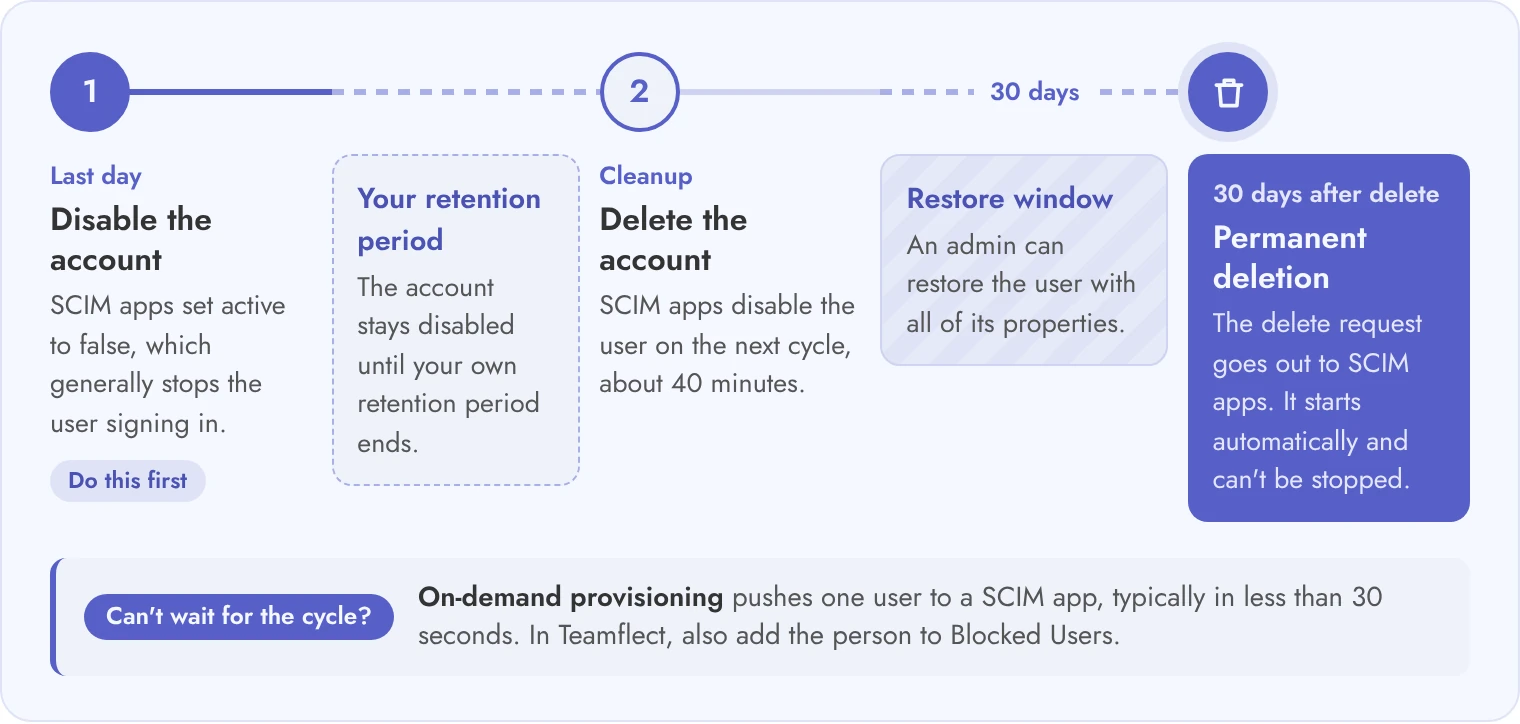
Disable the account first. Deleting it also disables the user in SCIM-connected apps on the next cycle, but the delete request only goes out at permanent deletion, 30 days later.
| Action in Entra ID | What Microsoft Entra ID does for SCIM apps | What Teamflect does | Use it for |
|---|---|---|---|
| Disable the account | Sets active to false in the app, which generally stops the user signing in | The user stays in Active Users. Hides the user from search, reviewee, survey and feedback pickers when admin consent is granted and the disabled-accounts option is switched on in Active Users | The first step on the last day |
| Delete the account | Disables the user in the app on the next cycle, then sends the delete request at permanent deletion, 30 days later | Removes the user from the Active Users list after sync completes | Cleanup after the retention period |
| Remove from the licensed security group | If the group is assigned to the app, Entra ID disables the user in the app on the next cycle | Under the Security Group model, the user can no longer sign in | Removing access while the account stays active, for example a contractor |
| Remove the user in the Teamflect Admin Center only | Not applicable | Frees a license seat. Under the Everyone model it does not block a later sign-in | Seat cleanup after the account is disabled |
Microsoft Learn describes a user soft-deleted in Entra ID as permanently deleted 30 days later, and that is the point where the delete request goes out. A directory sync that reads the account state behaves differently from a SCIM push, so check which one your HR tool uses.
During those 30 days, an admin can restore a deleted user along with all of its properties, which gives you a way back in Entra ID if someone was deleted by mistake. Once the window closes, permanent deletion starts automatically and can't be stopped.
Organizations licensed for Microsoft Entra ID Governance or the Microsoft Entra Suite can automate the leaver stage with Entra ID lifecycle workflows. These run tasks against users as they retire or are terminated, so disabling the account, removing group memberships and the later deletion happen on schedule rather than by hand.
When a termination can't wait for the next cycle, on-demand provisioning pushes one user, or a group of up to five members, to a SCIM-connected app, typically in less than 30 seconds. Because each request is that small, it suits urgent departures rather than routine ones.
When access must end before the next sync cycle, disable in Entra ID, then remove the person from Active Users and add them to Blocked Users in Teamflect.
Ask for eight things in writing: sign-in method, provisioning method, synced fields, sync interval, disable and delete behavior, what happens to the leaver's data, which permissions need admin consent, and where sync failures show up.
| Question | What a complete answer includes | How Teamflect answers |
|---|---|---|
| Which sign-in methods are supported? | Entra ID single sign-on, SAML, or both, and whether local passwords stay possible | Single sign-on through Microsoft 365 (Entra ID). SAML is not documented. Admins can also add users without a Microsoft 365 account, who sign in with a Teamflect username or non-Microsoft email and a password |
| How are users provisioned? | SCIM, a directory sync, a CSV import, or manual entry | Directory sync through Microsoft Graph, CSV import and manual entry. SCIM is not documented |
| Which fields sync, and which ones can be overwritten? | A field list with the source system for each | Name, email, title, department, location, hire date, birthday, manager, custom security attributes |
| How often does it run? | A stated interval and whether an admin can trigger a run | No fixed interval is published. Ask for one in writing |
| What happens on disable and on delete? | Separate behavior for each, and for license seats | A disabled user stays in Active Users. Delete removes the user from Active Users after sync. Removing a user frees their license seat |
| What happens to a leaver's data? | Retention, who can see it, and what can be reassigned | Data stays for admins and in reports. Goals, review forms and tasks are reassigned by hand |
| Which permissions need admin consent? | The permission names and what stops working without them | Directory.Read.All for sync, plus CustomSecAttributeAssignment.Read.All and CustomSecAttributeDefinition.Read.All for custom security attributes. Without consent, directory fields are manual or imported |
| Where do sync failures show up? | A log, an alert, or a support path | A troubleshooting guide covers toggling sync and resetting an attribute's data source |
Teamflect publishes its SOC 2 Type I and Type II certification and its Entra ID single sign-on on the security page, and lists supported HRIS systems on the HRIS integrations page.
A vendor that answers all eight in a help article has usually done this work before.
Yes. Teamflect supports single sign-on through Microsoft 365 (Entra ID), so employees sign in with the account they use for Microsoft Teams. SAML single sign-on and SCIM provisioning are not documented.
No. In SCIM-connected apps, the change waits for the next provisioning cycle, which runs about every 40 minutes. In Teamflect, disabling doesn't remove the user at all; only deleting the account in Entra ID does. If access must end immediately, block the user in Teamflect as well.
SSO handles sign-in. SCIM handles the account lifecycle: creating, updating and deactivating users in the app on a schedule. An HR tool can offer one without the other.
They stay. Admins can see them in reports, and Global Administrators can open the profile under the Everyone model. Goals and open review forms are reassigned by hand.
Yes. Directory sync needs admin consent for Directory.Read.All. Without it, titles, departments, managers and hire dates are maintained by hand or imported from a CSV.
Disable the account in Entra ID, remove the person from Active Users and add them to the Blocked Users list in Teamflect. Blocked users see a warning page when they try to sign in.


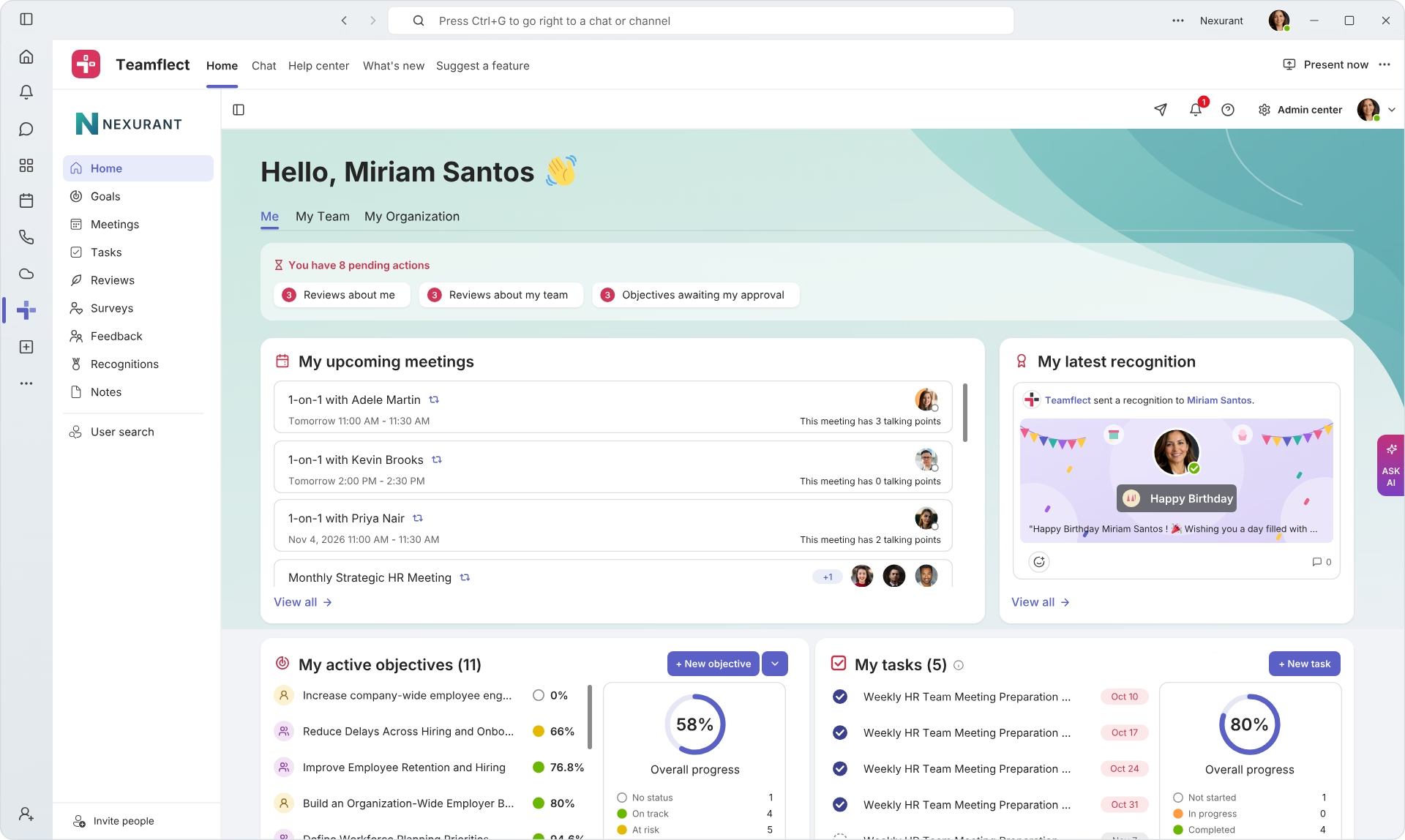
Create high-performing and engaged teams - even when people are remote - with our easy-to-use toolkit built for Microsoft Teams